
Likes! and comments
Once you can post and read Stories, try connecting with Likes! and comments. A quick reaction or a one-line comment is an easy way to tell someone “I saw this” or “here’s how it felt.”
What Likes! and comments are for
| Tool | Role |
|---|---|
| Like! (reaction) | Share a feeling quickly with an emoji—and spark conversation |
| Comment | Share thoughts with text, images, or video |
| Reply | Continue a thread under a comment; the other person gets a notification |
Both are tools for connecting. Start with a casual Like!, then move to a comment when you have more to say.
How to use Likes!
- Tap the Like! (reaction) button under the post you want to respond to.
- Pick one emoji that matches how you feel.
- Tap the same emoji again to remove your Like!. To change types, pick a different emoji (you can have only one reaction type per post).
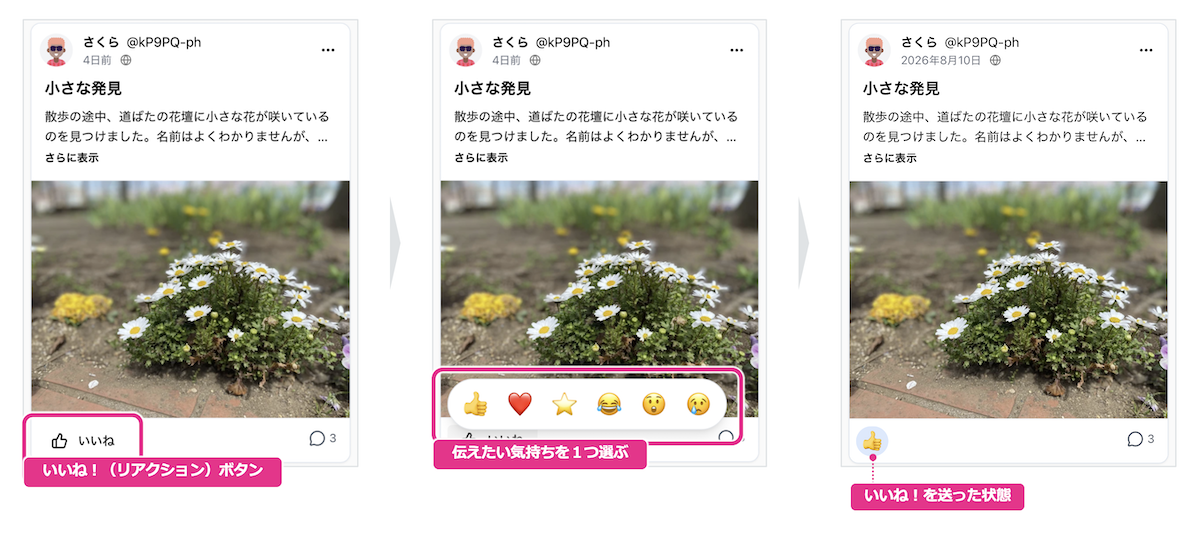
Icons and meanings
On Colorfulia you can choose from these six reactions:
| Icon | Label | Feelings it often conveys |
|---|---|---|
| Like | Support, empathy, “I saw this” | |
| Heart | Love, care | |
| Top | Especially great / wow! | |
| Laugh | Funny / made me smile | |
| Surprise | Shocked / unexpected | |
| Sad | Sad, hard, tender |
These examples are only guides—pick whatever fits the person and the moment.
Counts and who can see them
On Stories, how much detail you can see about Likes! (counts by type, who reacted) depends on your relationship.
- On a Friend’s post, you can see richer details such as totals, types, and who reacted.
- On a post from someone who is not your Friend, you only see your own Like!—not other people’s counts or lists.
On your own Stories, you can see detailed info as the author. Remember: visibility of reactions follows how close the connection is.
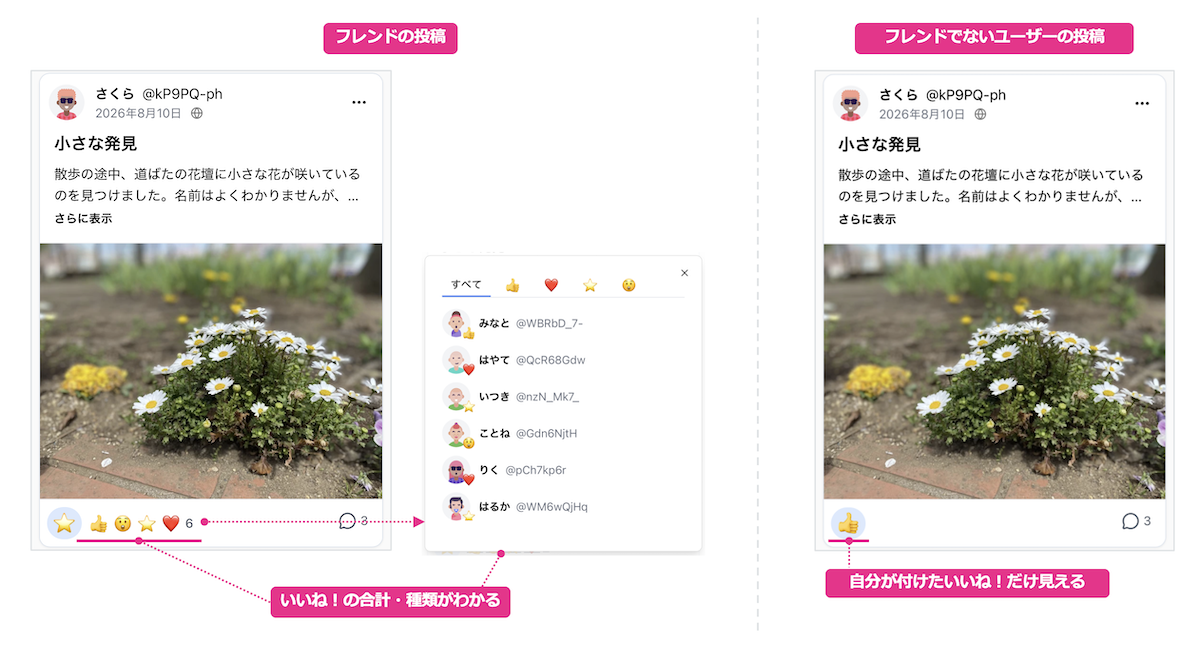
Comments and replies
Leave a comment
- Open the Story and find the comment field.
- Enter text and/or attach images or video.
- Send.
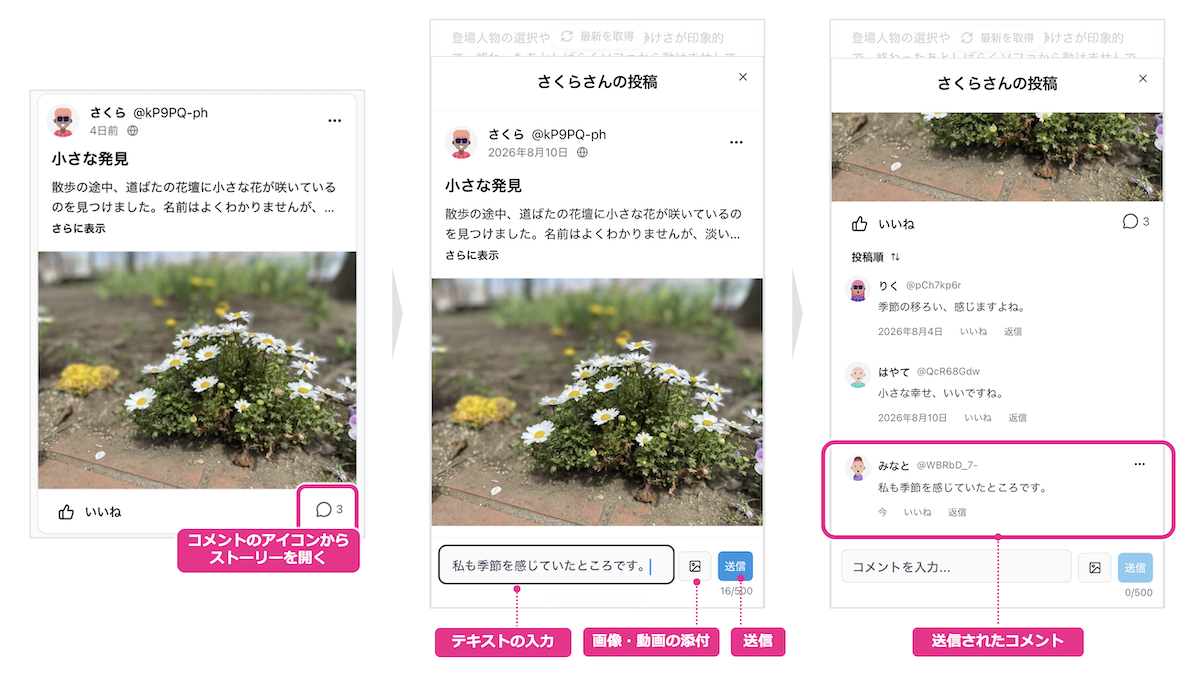
What you can send
| Item | Details |
|---|---|
| Text | Up to about 500 characters. With images/video, body text is optional. |
| Attachments | Images/video, up to 10. |
| Caption | Short description per attachment (up to about 200 characters). |
If the author turned off comments on the post, commenting isn’t available.
Reply
Use Reply on a comment to continue that thread. The person you reply to gets a notification.
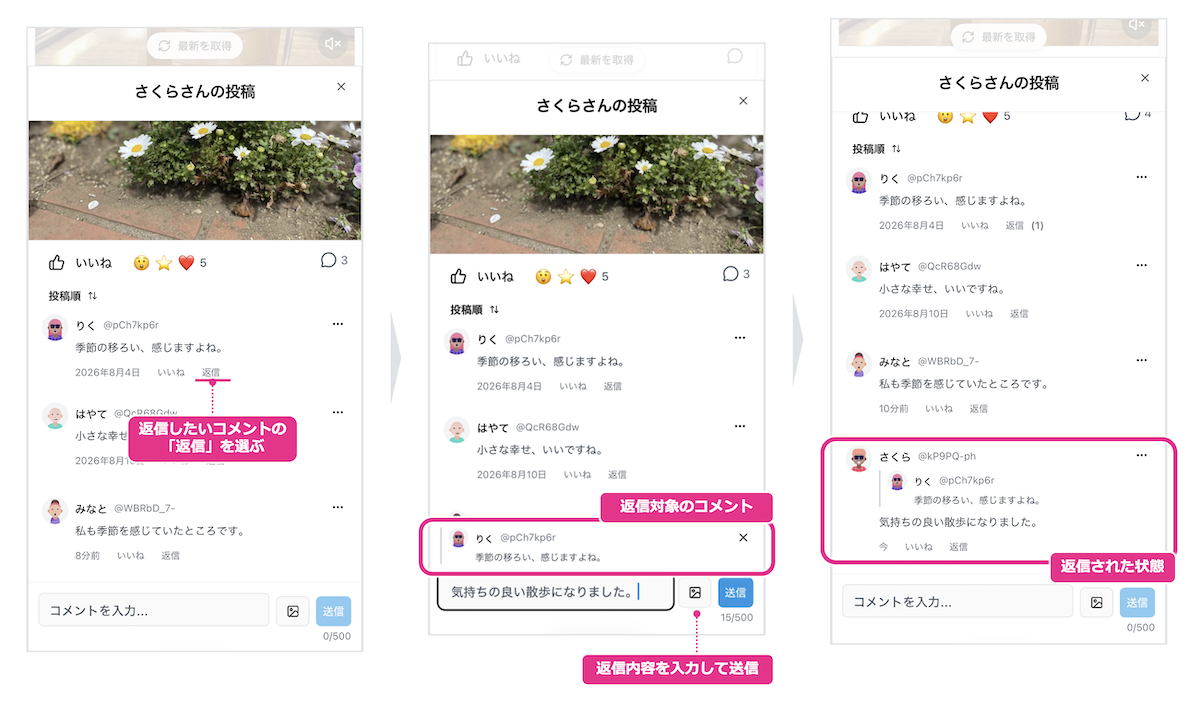
Notifications for Likes! and comments on your posts
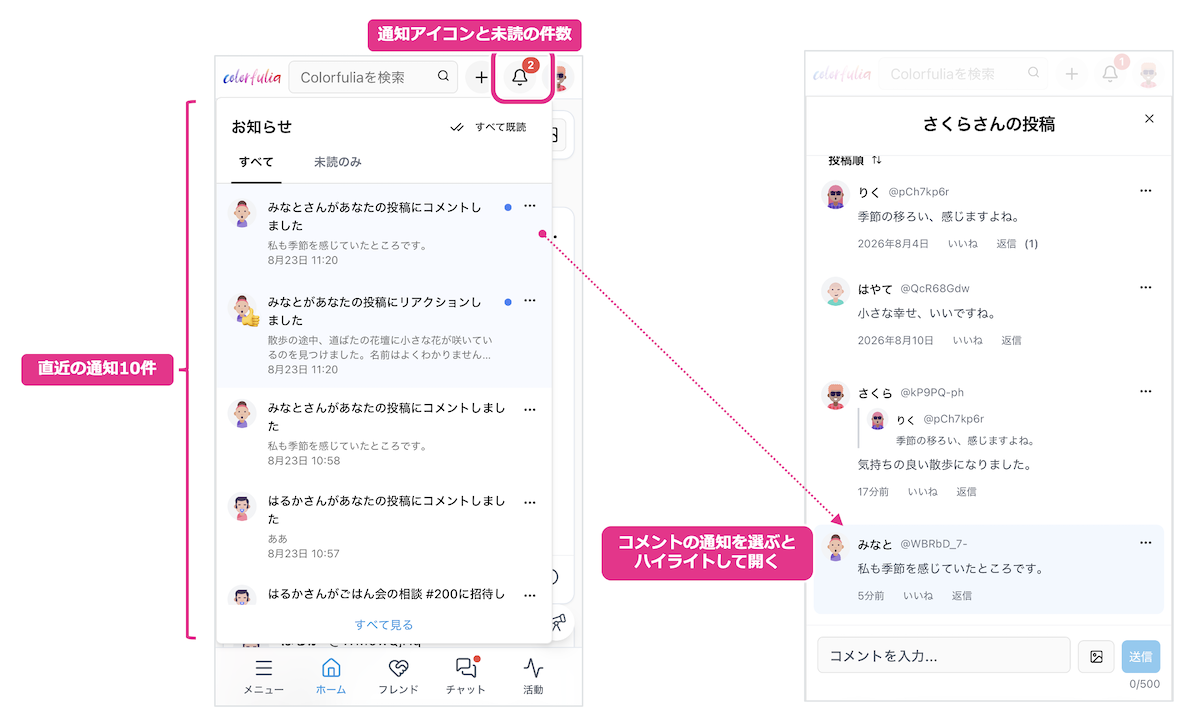
When someone Likes! or comments on your Story, you get a notification. Open the bell (notifications) icon in the header. An unread count badge appears when you have unread items.
How to check
- Open the Notifications icon at the top of the screen.
- Choose a notification to open the Story detail; for comments, it scrolls and highlights the relevant spot.
- To browse older items, open Notifications. You can mark all as read or show unread only.
What notifications tell you
From notifications you can usually see:
- Who reacted to your post or comment
- Whether it was a Like! or a comment / reply
- For Likes!, the reaction type and counts like “and N others”
- For comments/replies, a short preview of the text
- A tap takes you to the Story (or the relevant comment)
Notifications also mix in Friend requests, follows, chat invites, and more. Start by spotting “responses to what you posted.”
Next step
Does this give you a clearer picture of the basics of connecting on Colorfulia?
Use Deepen connections with Friends and Expand connections safely to grow Friend and community ties while going deeper—and wider—with people you trust.