
Deepen connections with Friends
Not every connection on Colorfulia is equally close. A Friend relationship unlocks closer kinds of exchange. This page covers what that feels like and how to become Friends.
What you can do as Friends
Friends are a mutual connection made by request and approval. Once you’re Friends, you can:
| Capability | What it feels like |
|---|---|
| View friends-only posts | Read Stories the other person set to Friends only |
| Post on their Space Notes | Leave a Story on a Friend’s page |
| 1:1 private chat | Message each other outside the public timeline |
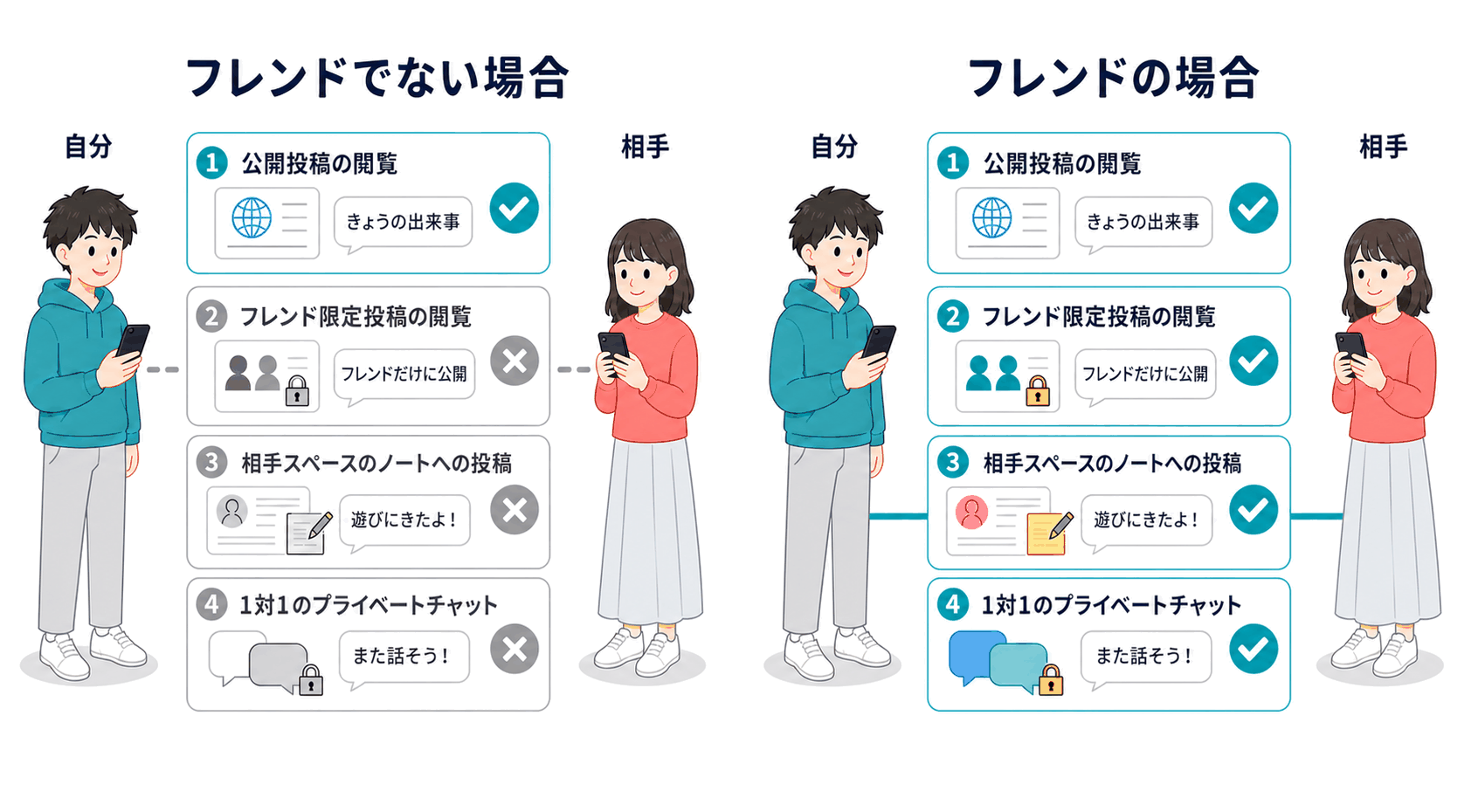
You can still connect via public timelines and comments, but Friendship adds “posts for a limited circle” and “private conversation,” which often deepens the relationship. You don’t need lots of Friends—a few is enough.
Friends-only posts and visibility
When you create a Story, Visibility chooses who can see it.
| Visibility | Who can see it (guideline) |
|---|---|
| Public | Colorfulia users can view it |
| Friends only | Only your Friends can view it |
| Only me | Only you can view it |
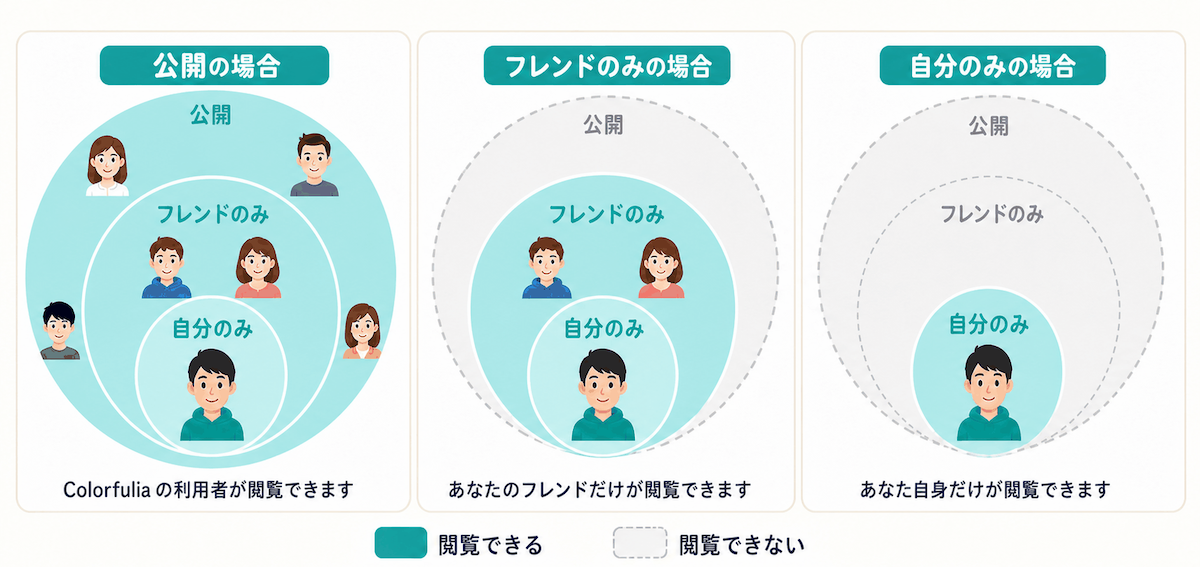
Friends only posts are close-circle sharing that reach people you’re Friends with. Becoming Friends lets you read theirs—and share yours with Friends only.
Posting on a Friend’s Notes
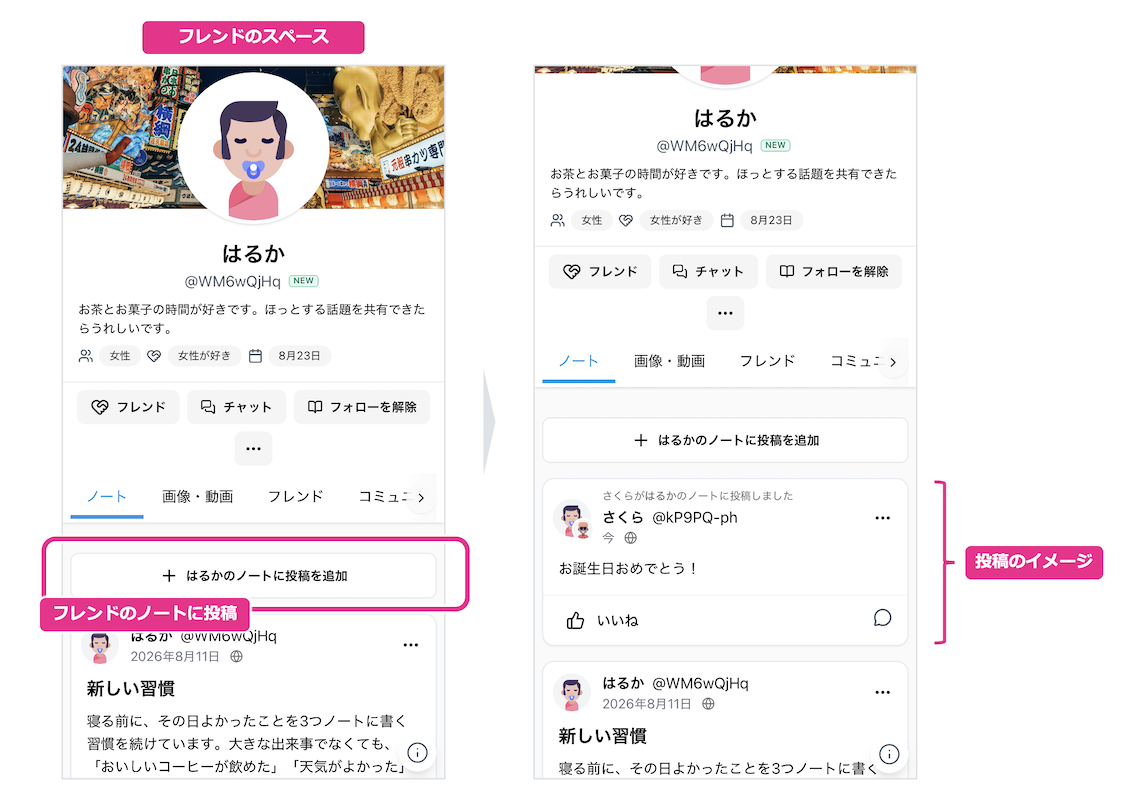
Each user’s profile page (My Space) has Notes, where Stories appear. Friends can post on each other’s Notes.
That’s a bit different from writing on your own My Space:
- Useful when you want the Friend and people around them to see it (it stays on their Notes, so visitors to their page may notice)
- Good for congratulations, visit records, or a short shared topic—“leaving something in their place”
Open their Space and start from adding a Story to their Notes. Choose visibility that fits the moment.
1:1 chat
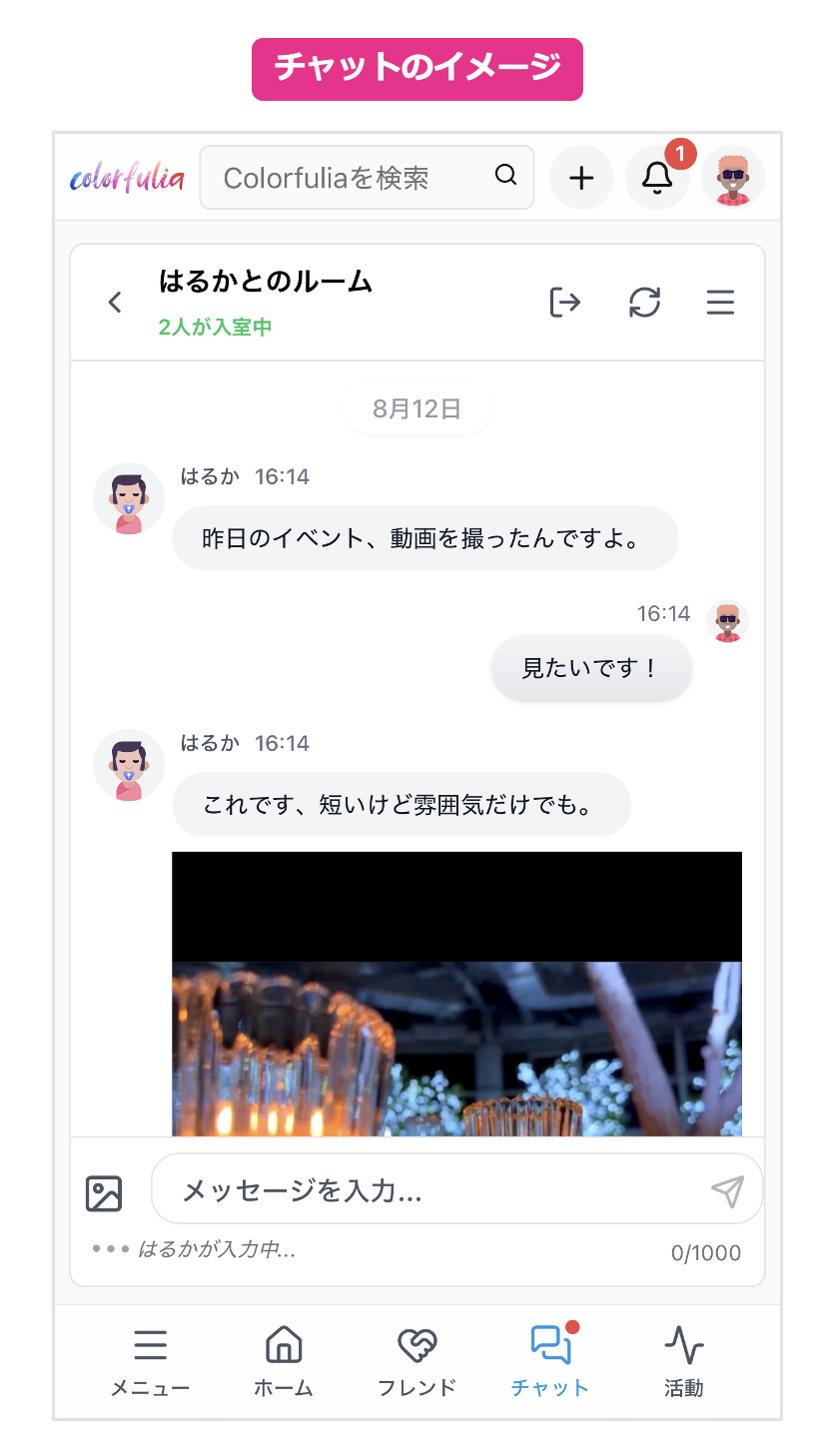
Friends can message each other in 1:1 chat. Unlike Stories or comments, it’s a private conversation that doesn’t appear on timelines.
- Sensitive check-ins or details you don’t want public
- Ongoing private talk beyond a single comment
Open chat from Chats in the menu, or start from someone’s Space or your Friends list. For steps, see Support: 1:1 chat.
How to become Friends
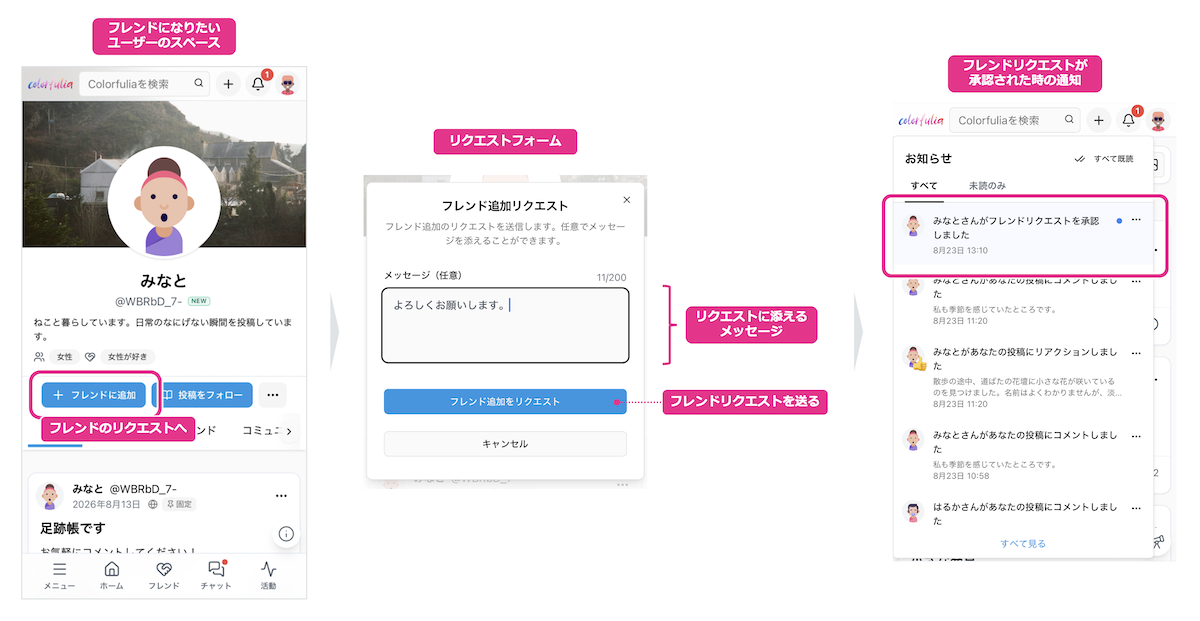
Friendship isn’t one-sided. It’s request → approval.
Steps
- Open the person’s Space (profile)
- Send a Friend request with Add Friend
- They get a notification; when they approve, you’re Friends
After Friendship is established, you also automatically follow each other, which makes it easier to see updates on Home. For how Follow and Bookmarks differ, and how Home gathers posts, see Expand connections safely.
Responding to Friend requests (approve / decline)
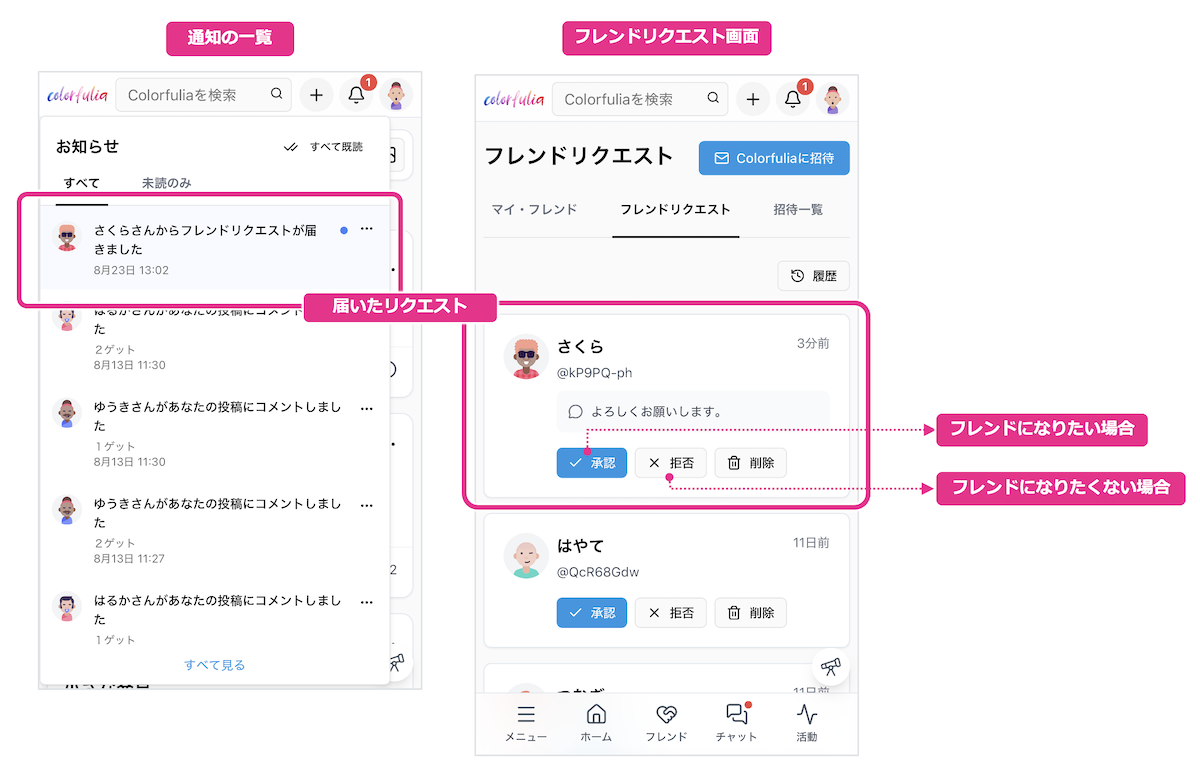
When someone sends you a Friend request:
- Check it in Notifications or on Friend requests
- Approve → you become Friends
Decline → you don’t become Friends, and the other person is told it was declined
Approve at your own pace. Later you can review relationships from the Friends list or someone’s Space (for detailed steps, see Support: Find people and become Friends).
Invite friends and acquaintances to Colorfulia
You can invite people you’d like to use Colorfulia with, or recommend it to. Choose email or a shareable invite link. When they finish registration from your invite, you become Friends with each other.