
First steps after signing up
After you finish signing up, start by setting up My Space. Once your “cover” and profile basics are in place, it’s much easier to build connections on Colorfulia.
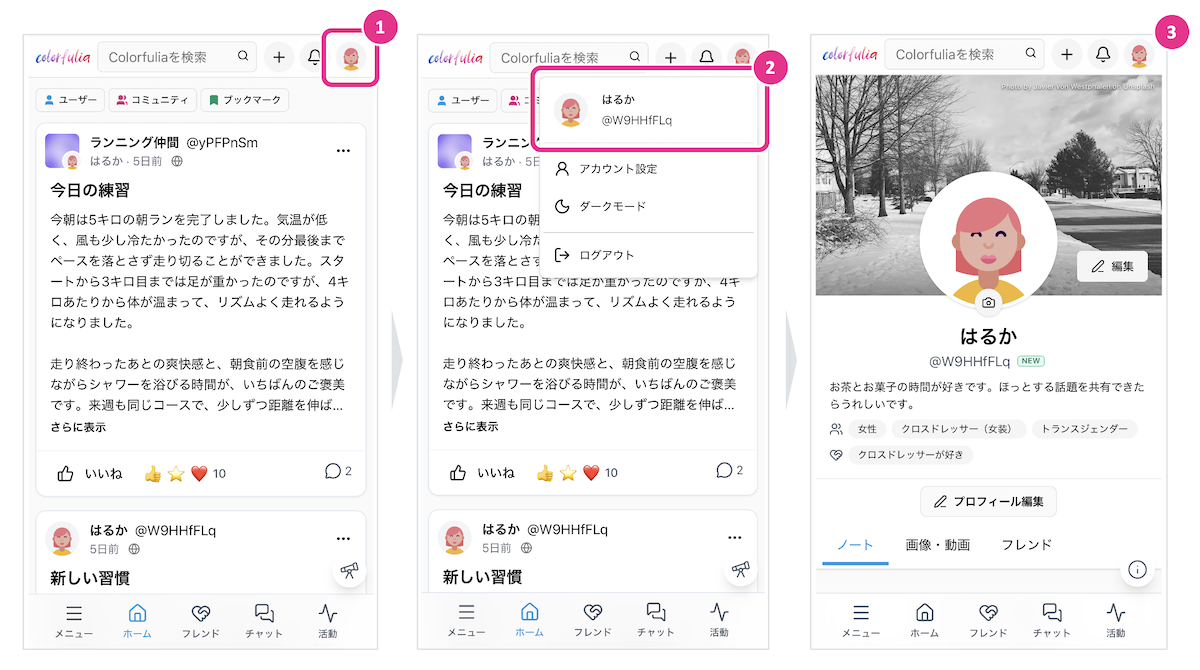
Open My Space
On Colorfulia, your own page is called My Space (your profile page).
How to open it
- Open the profile icon (your icon) in the top header.
- Choose the row that shows your nickname / @Space name near the top of the menu.
- You’ll go to My Space (
/@your-space-name).
What’s on My Space
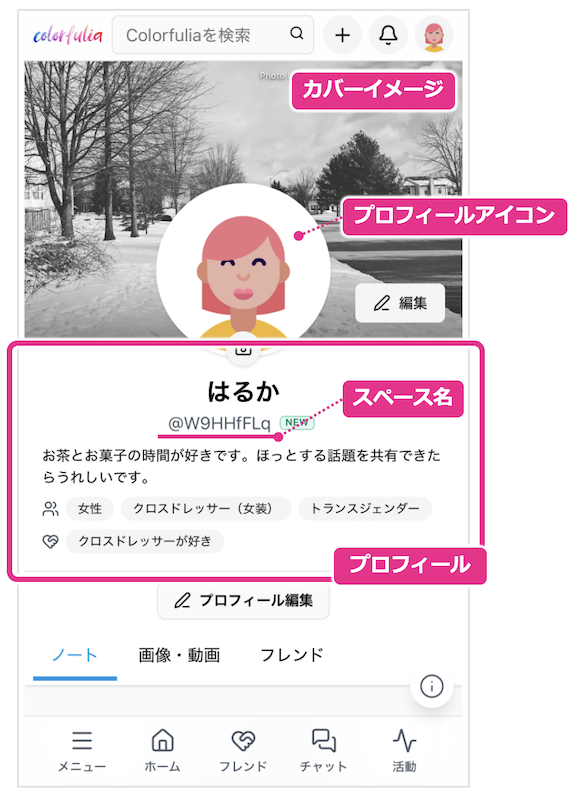
Near the top of My Space you’ll see elements like these. None of them are required to change, but adjusting them to fit you makes My Space feel more like yours.
| Name | Description |
|---|---|
| Cover image | The large image at the top of the page—like a cover. |
| Profile icon | The icon that represents you. It also appears as the author icon on your posts. |
| Space name | Your public name shown with @. It’s also used in your My Space URL. |
| Profile | Nickname, bio, gender identity, sexual orientation, social status, birthday, location, and more. |
Change your images
You can change the cover image and profile icon from My Space. Use your own photos, presets, or an auto-generated avatar—whichever you like.
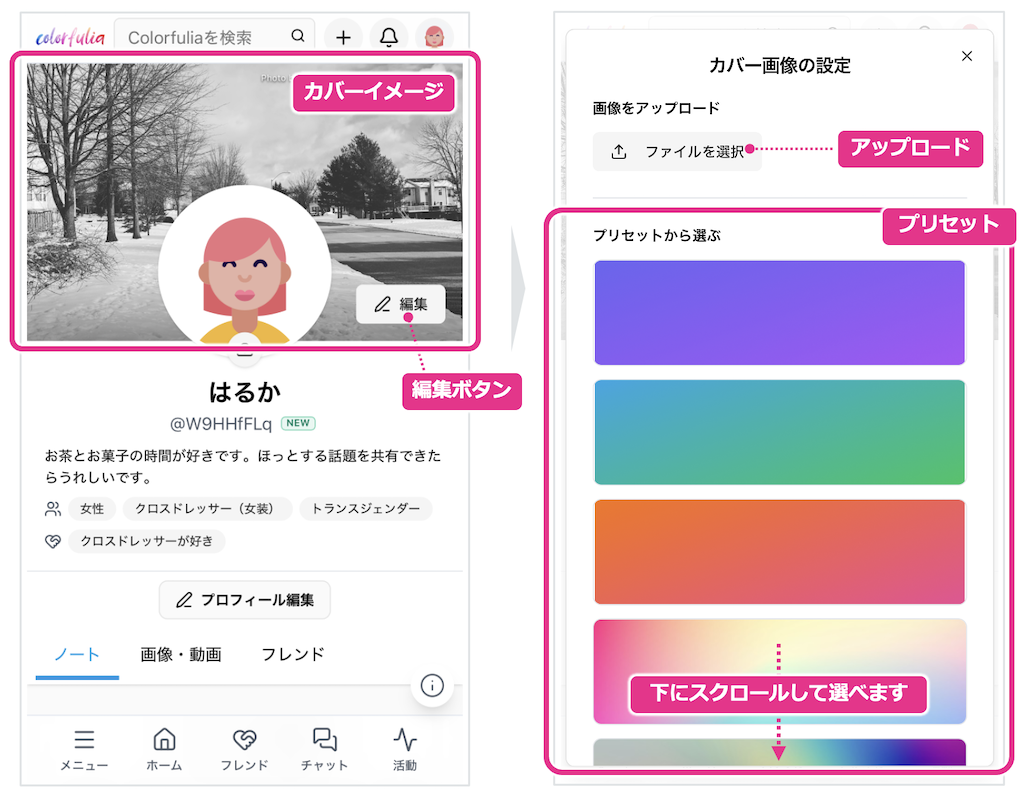
Change the cover image
- Open My Space.
- Use the edit button near the cover
 to upload an image or pick a preset.
 - After you upload or choose a preset, the My Space cover updates.
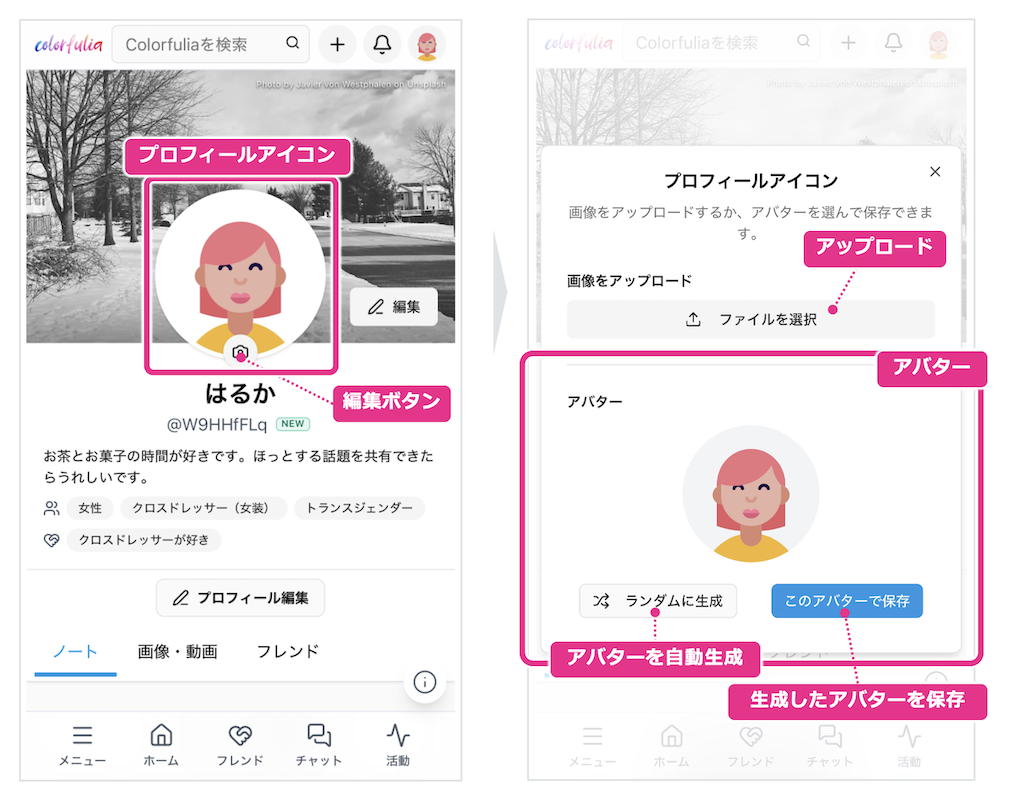
Change the profile icon
- Open My Space.
- Use the edit button on the profile icon
 to upload an image or generate an avatar.
 - For avatars, you can use Generate randomly.
- After you upload an image or save an avatar, it appears as your profile icon.
Change your Space name
Right after sign-up, your Space name is a short alphanumeric string assigned by the system. Changing it to something that feels like you gives you your own address.
Why change it?
- Your My Space URL becomes
/@your-space-name, which is easier to remember and share. - It’s easier to tell friends, “this is my address.”
- On screen,
@Space namebecomes a clear way to recognize you.
Allowed characters are half-width letters and numbers, hyphen (-), and underscore (_). Length is 5–32 characters. You can’t take a name that’s already in use.
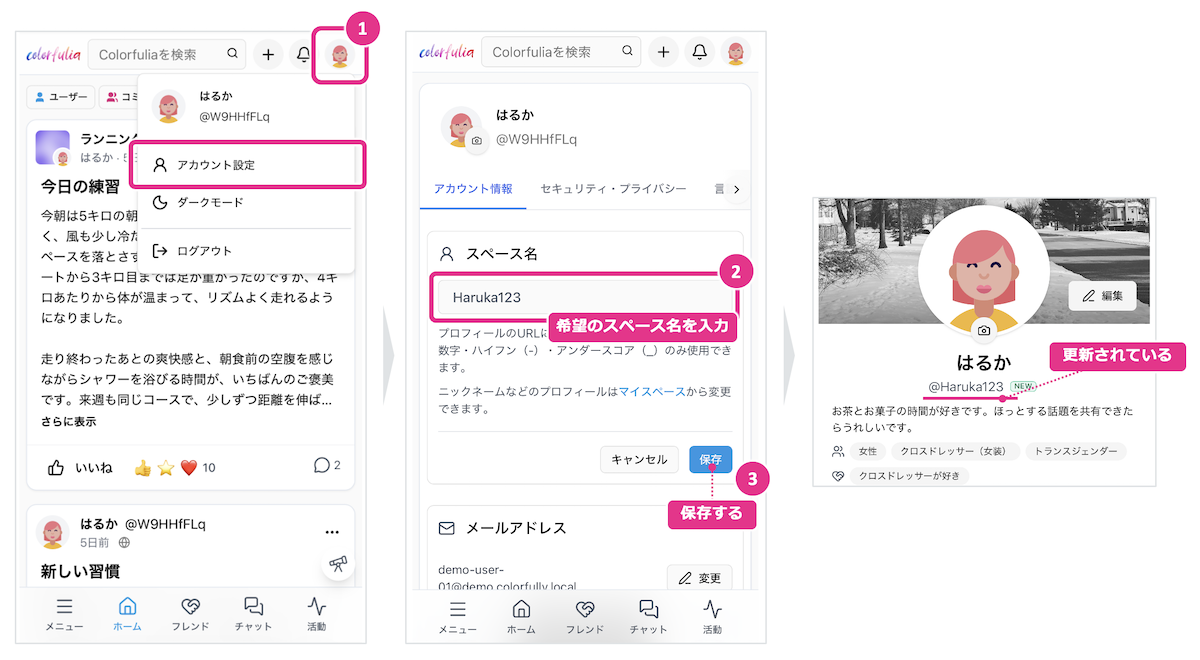
How to change it
- Open the profile icon in the header and go to Account settings (Account settings).
- Enter your preferred Space name in the username field.
- Save.
- Open My Space and confirm that
@Space nameand the URL have updated.
Set up your profile
Edit your profile—nickname, bio, and more—from My Space too. Sharing a bit about who you are helps start conversations with Friends and in communities.
Profile fields include:
- Nickname
- Bio
- Gender identity
- Sexual orientation
- Social status
- Birthday
- Location
You don’t need to fill everything in detail. A short one-line bio is enough to start.
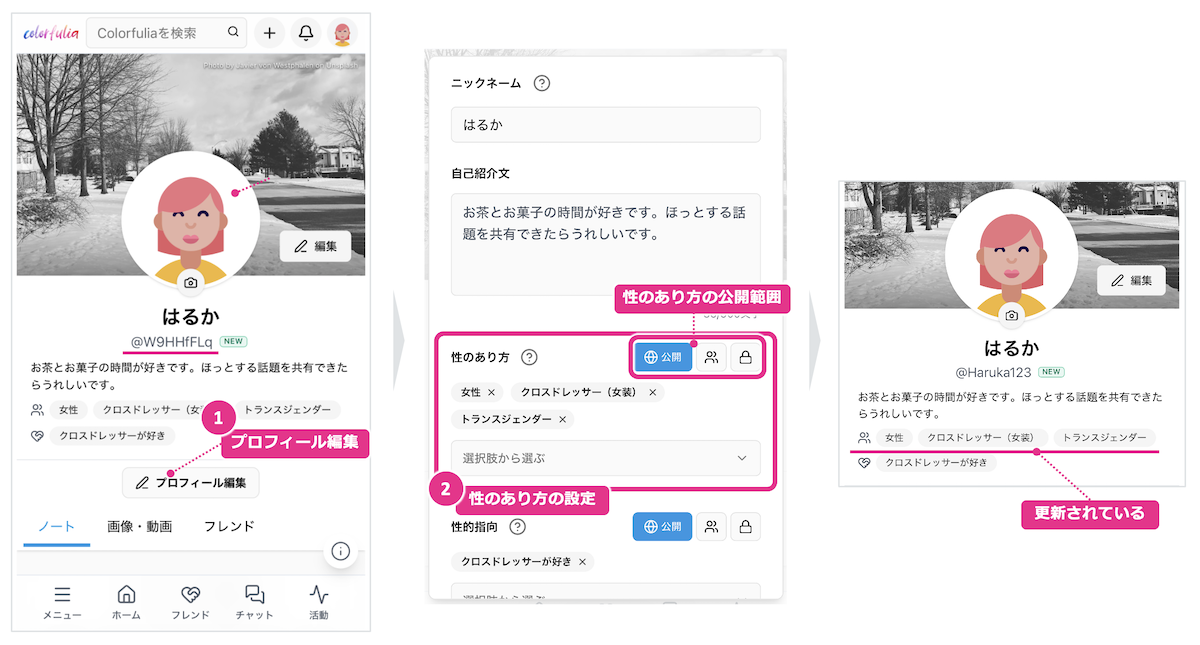
How to change it
- On My Space, open Edit profile.
- Fill in the fields, choose visibility where needed, and save.
- Confirm the changes on My Space.
Next step
Once your My Space cover and profile basics are ready, write your first Story in Posting Stories.
For reactions and comments, see Likes! and comments.