
Posting Stories
Once My Space is ready, try posting a Story. You can share a moment of everyday life with text, photos, or video—this is the basic way to publish on Colorfulia.
What is a Story?
A Story is Colorfulia’s basic post: a combination of title, body, images/video, and more that shares a slice of daily life.
- Posted Stories appear in the Notes on your My Space.
- You choose visibility and other settings for each post.
- You can post text only, or images/video only (at least one of text or media is required).
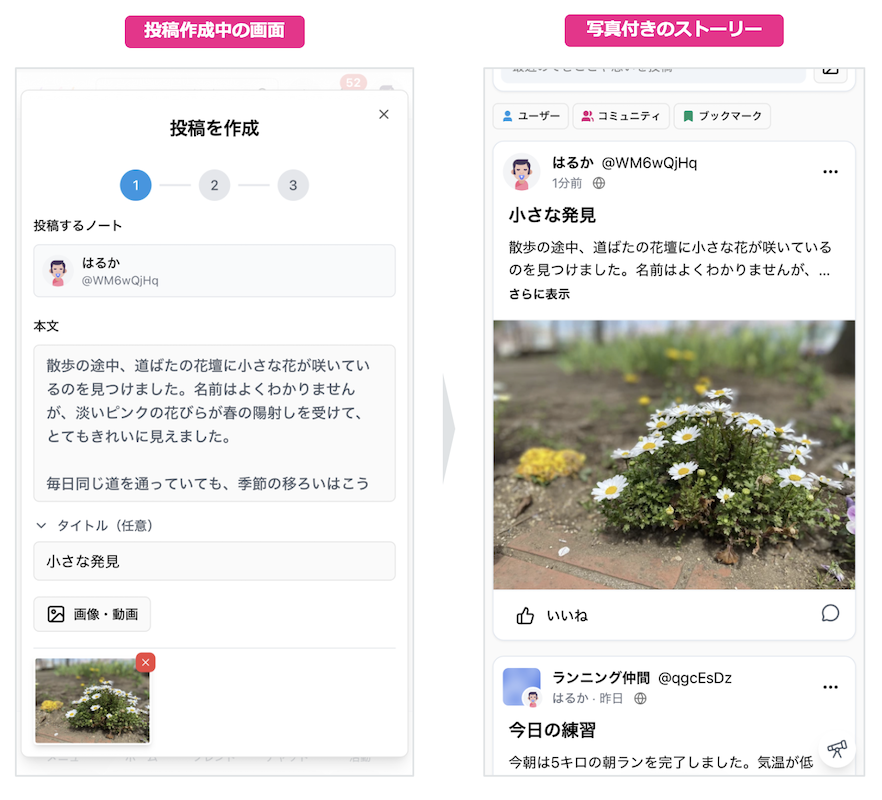
Where can I read new Stories?
Public Stories from Colorfulia users are available under New stories in the sidebar (menu).
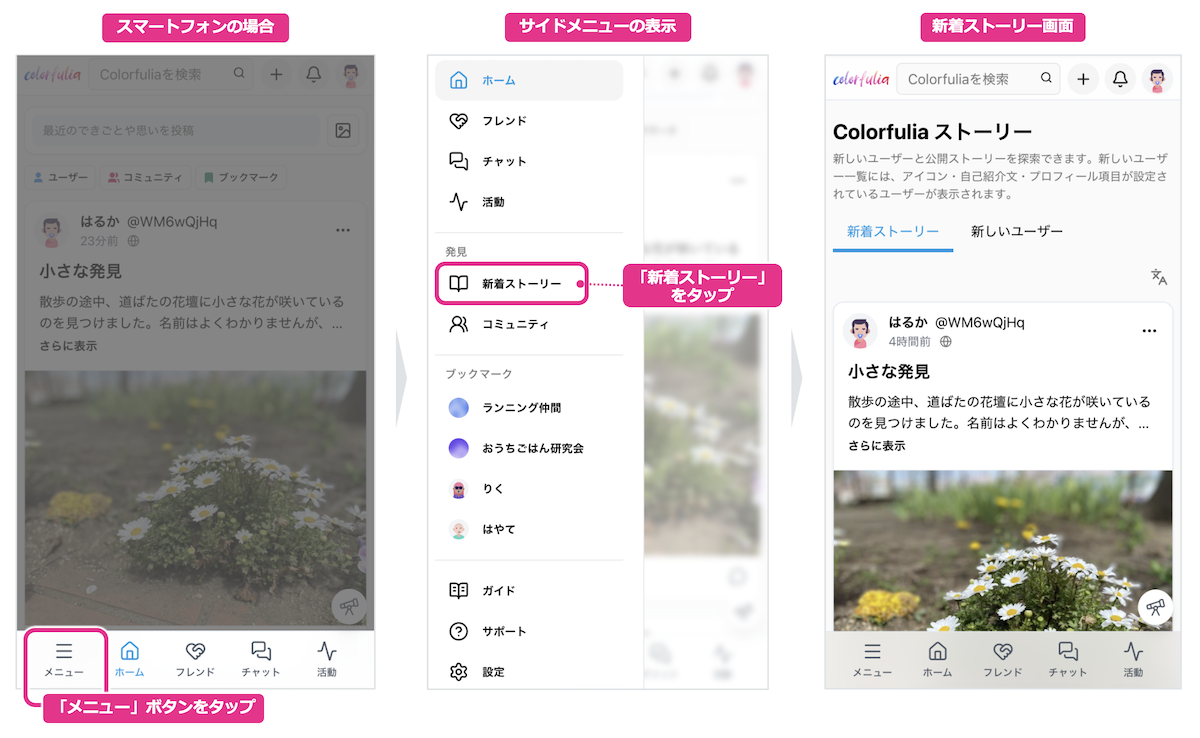
Where can I create a Story?
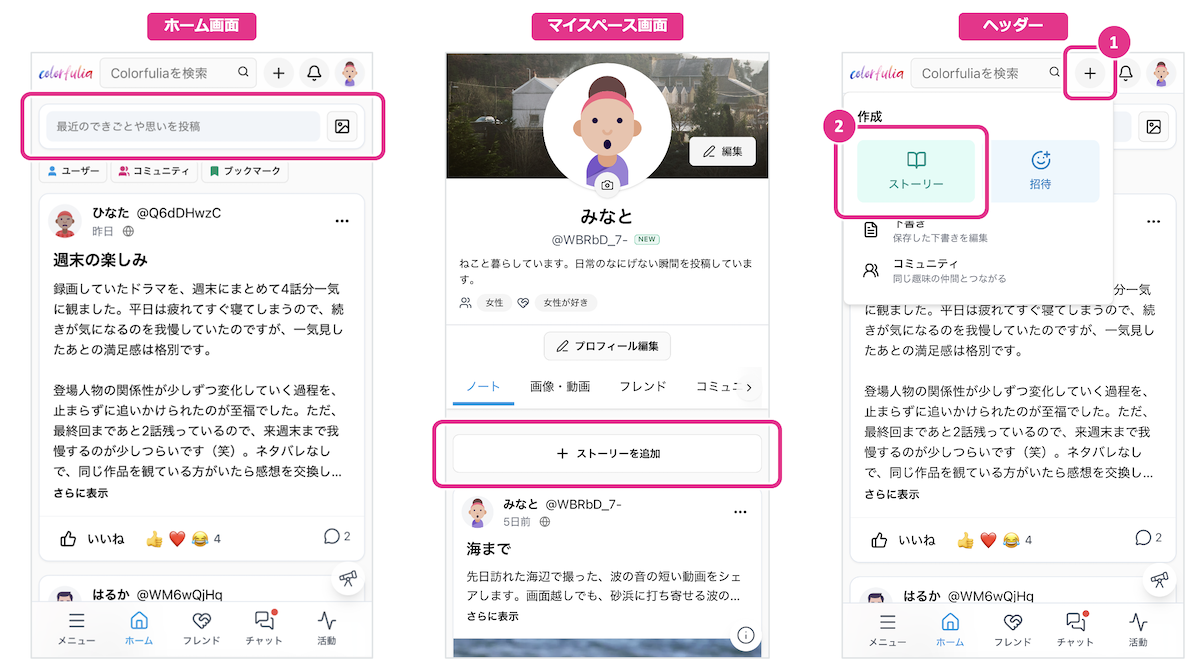
You can create and post your own Stories from Home, My Space, or the header. Whichever entry you use, the post goes to your My Space.
From Home
Choose Share a recent moment or thought near the top of Home to open the compose screen.
From My Space
On My Space, choose Add a Story at the top of Notes to open the compose screen.
From the header
- Open Create (+) in the top header.
- Choose Story from the menu to open the compose screen.
Try posting a Story!
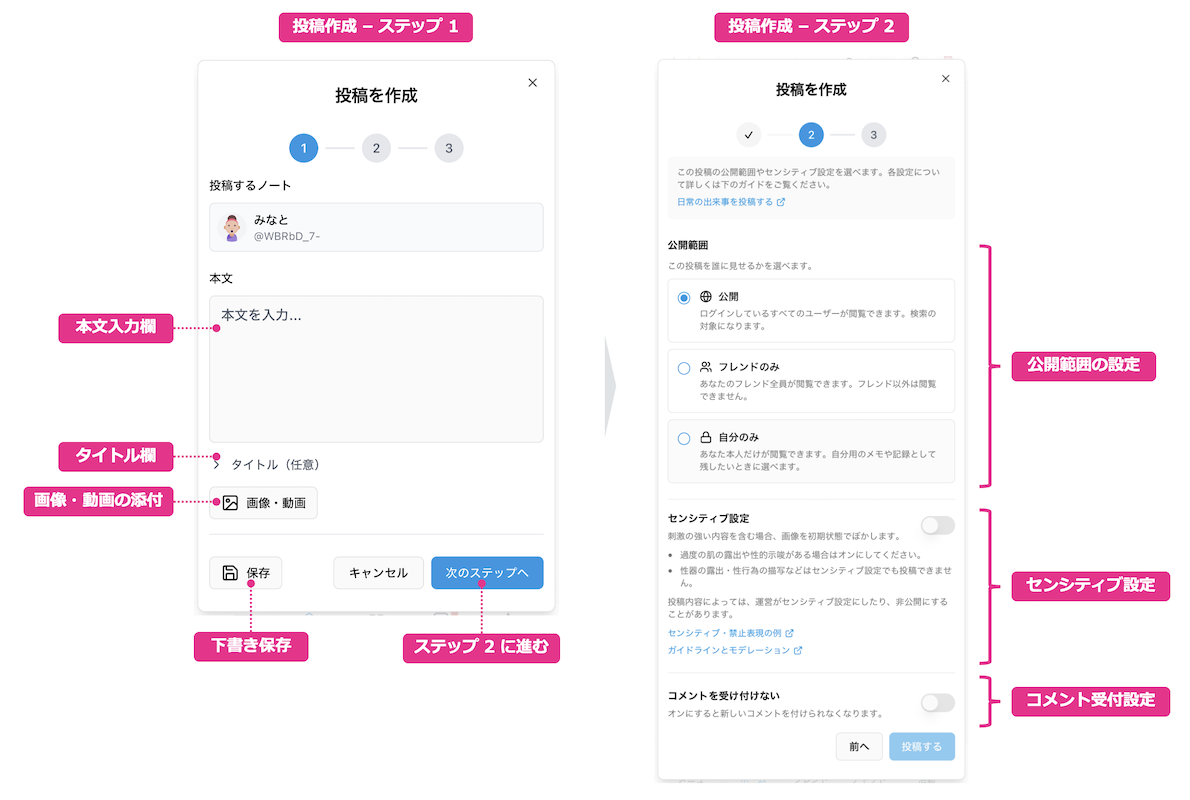
On the compose screen, you can post like this:
- Write a body or attach images/video (at least one is required).
- Add a title if you want (optional).
- Tap Next step to move to post settings.
- In settings, choose visibility, Sensitive, whether comments are allowed, and more.
- Tap Post to publish.
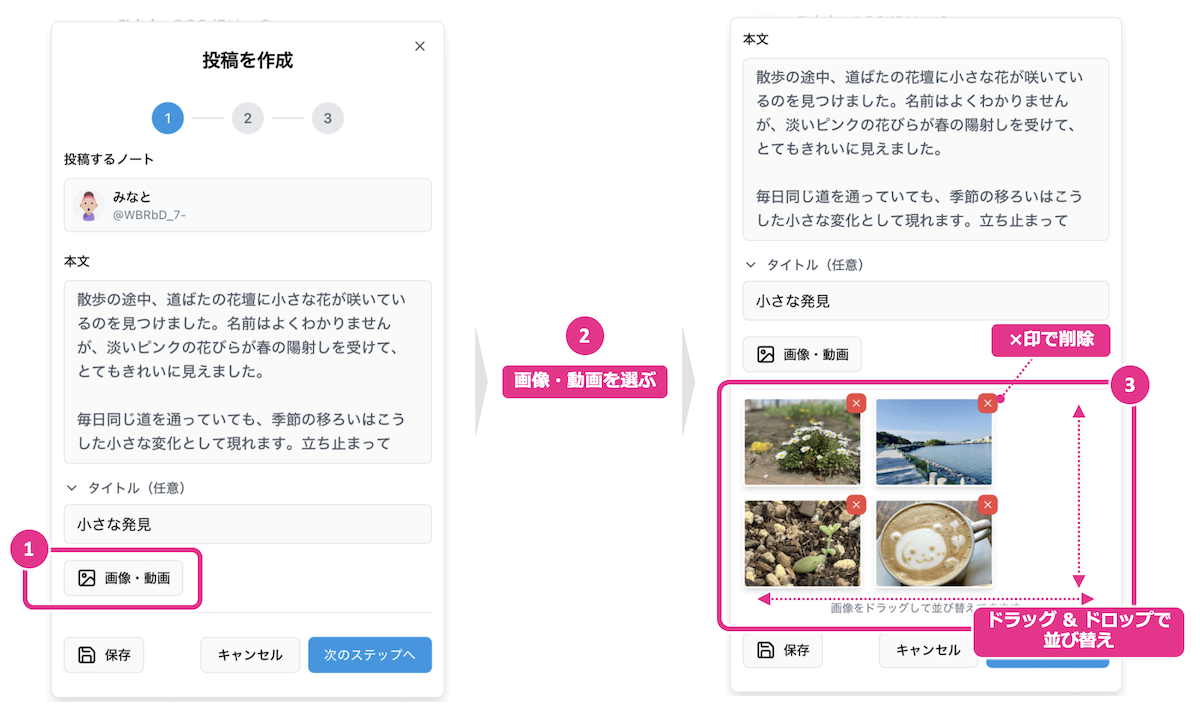
Attaching images and video
- Choose Photos & video on the compose screen.
- Pick images or videos from your device. Selected items appear as thumbnails at the bottom.
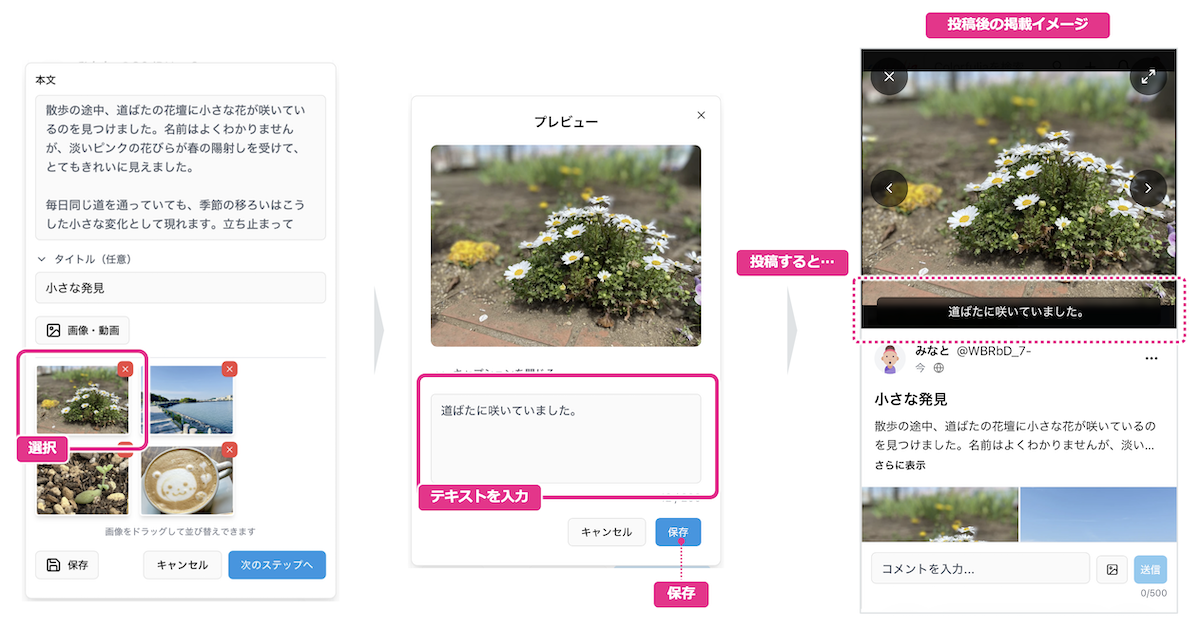
- Reorder or remove items from the thumbnails.
You can tap an image to add a caption if you like.
Visibility
In the settings step, Visibility controls who can see the post you’re creating.
| Visibility | Who can see it (guideline) |
|---|---|
| Public | Logged-in Colorfulia users can view it. It can appear in New stories and in search. |
| Friends only | Only your Friends can view it. |
| Only me | Only you can view it (handy for notes or draft-like records). |
If you’re unsure, start with Friends only or Only me.
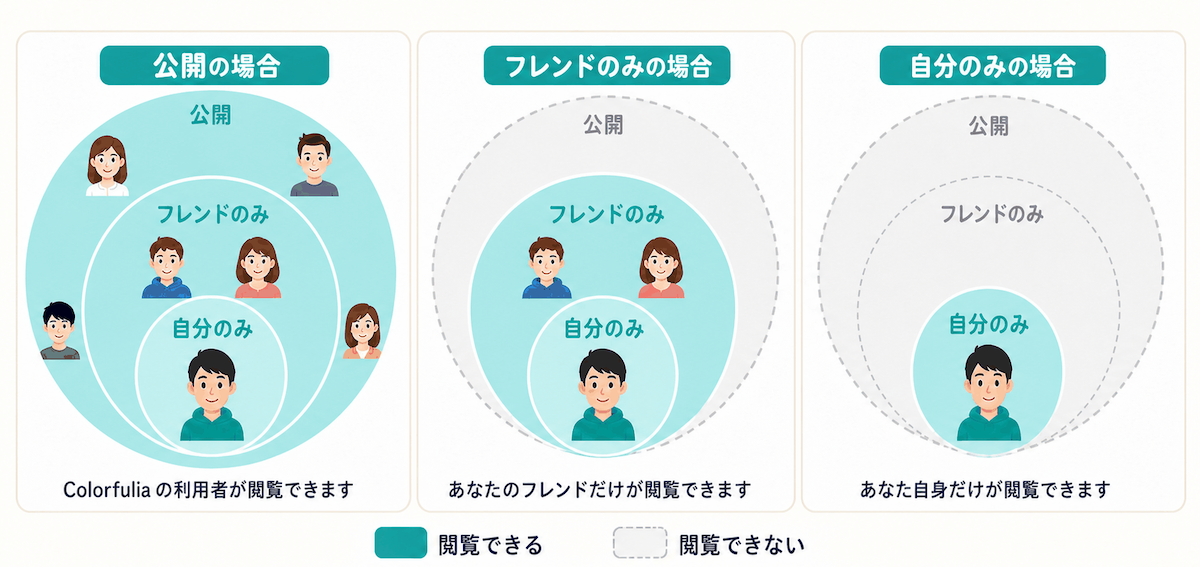
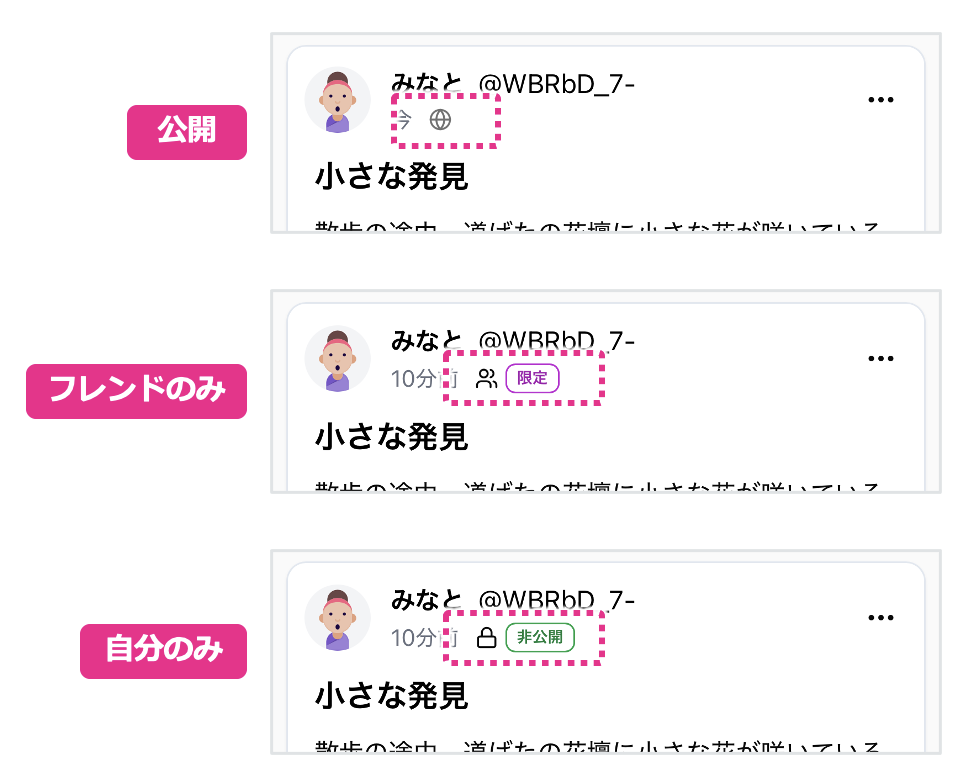
How each visibility looks
Posts show an icon and badge that indicate their visibility.
Be careful with Sensitive content
For posts that include sexual suggestion, violence, horror, or other material that may unexpectedly upset or burden some viewers, turn Sensitive on when you post.
When it’s on, images and video appear blurred for viewers until they tap to reveal.
Where to set it
- After entering body text and media on the compose screen, tap Next step to open settings.
- Turn on the switch under Sensitive settings. Leave it off if the post is not Sensitive.
How it looks when viewing
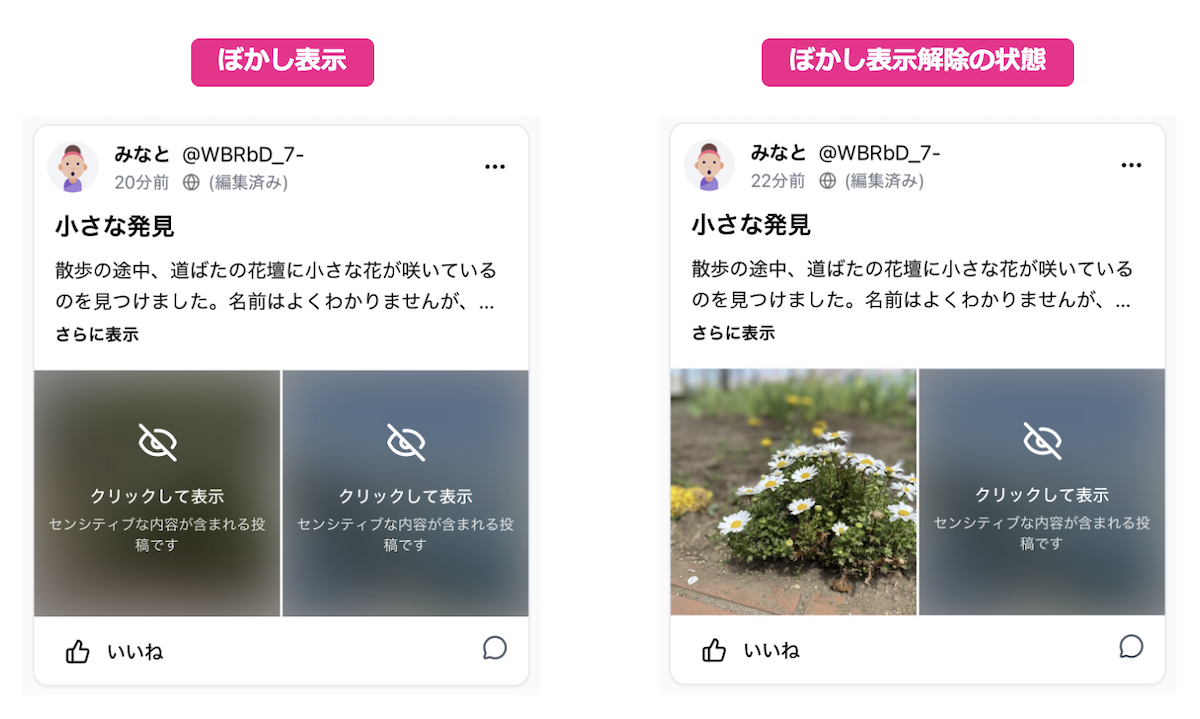
Public posts can be seen by a wide range of Colorfulia users. Be especially careful on posts many people may see, and follow the guidelines when applying Sensitive. Some content—such as highly sexual material or graphic violence—cannot be posted even with Sensitive on.
What needs a Sensitive setting, and what is prohibited, is defined in the Community Guidelines. Skimming them before you post is a good habit.
After you post
Check that your Story appears in these two places:
- Notes on My Space — near the top of your Notes.
- New stories — if visibility is Public, it appears in New stories.
Edit or delete a post
You can edit or delete a Story after posting. Use the menu on the right side of the post.
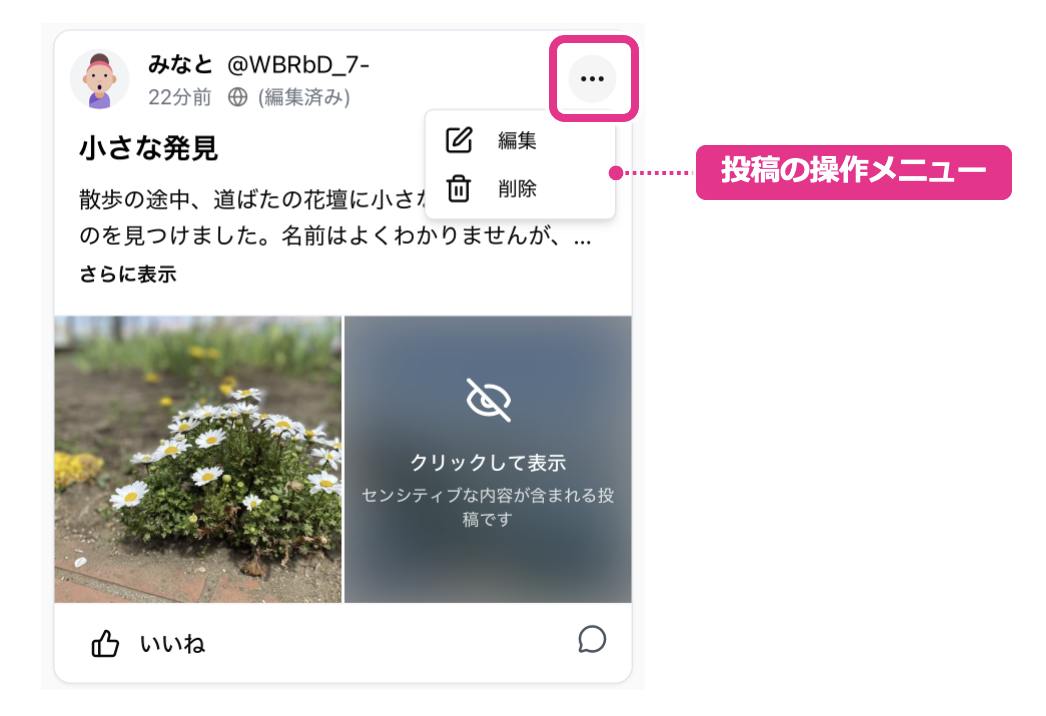
Pin a post to the top
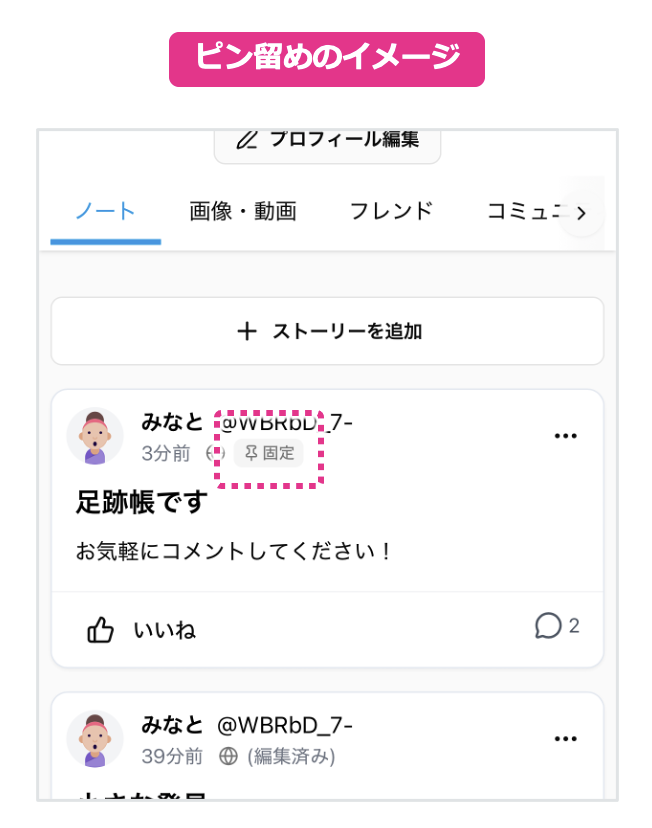
On My Space Notes, you can pin a post so it stays at the top. That’s called pinning.
- Go to Notes on My Space.
- Open the menu on the right of the post you want to pin and choose Pin to top.
Pinning helps people learn more about you, and can also work like a guestbook for visit records from others.
Next step
Once you’re comfortable reading and writing, try reactions and comments in Likes! and comments.